
This VPS migration checklist covers preparation, copy, testing, DNS, email pitfalls, monitoring, and rollback. It does not argue whether you need a VPS in the first place. If that decision is still open, settle it before you schedule a maintenance window.
Quick answer: A safe move from shared hosting to VPS needs an inventory, a verified backup, a prepared target server, testing before DNS, a controlled cutover, and a rollback plan you can actually run. Skip any of those and you are improvising under live traffic.
Before you schedule the migration
Write down the decision rules before anyone copies files. Who can approve the go-live? What maintenance window is acceptable to stakeholders? Which data can change while you work—editorial drafts only, or also orders, bookings, comments, and memberships?
List who holds access to DNS, the current host, the domain registrar, email, and backups. If two people each hold half the keys, the cutover stalls at the worst moment. Store those contacts in the project note, not in a chat that will scroll away.
Agree on the condition that stops the migration. A failed restore test, missing DNS access, an incomplete inventory, or an unavailable rollback owner are all valid stop signs. Stopping early is easier than recovering a half-moved site under live traffic.
If forms or checkouts keep writing while you migrate, plan a final sync or a short write freeze. Without that, the new server can go live missing recent writes from the copy window, and the old server keeps the “real” copy without anyone noticing until reports disagree.
Confirm that VPS is actually the next step
Shared hosting limits are real. So are slow themes, heavy plugins, and uncached pages. Moving those problems onto a larger machine does not fix them. If you have not confirmed that shared hosting itself is the constraint, pause the migration calendar and review when a VPS is worth it.
This article assumes that decision is already made. From here, the work is operational. A VPS also increases what you own: updates, firewalls, and recovery, unless you buy management separately. Budget time for that ownership, not only for the copy step.
Build an inventory
Inventory is tedious, but it catches missing mail paths, cron jobs, and uploads before cutover. Capture what the live site depends on before you change anything. Short written notes beat memory. Keep them in a shared project document, not one person’s chat history.
- Domain and DNS Registrar, DNS host, and who can edit records.
- Current hosting Account, panel access, and where files live.
- Runtime versions WordPress, PHP, and database versions in use.
- Themes and plugins Active set, must-have extensions, license keys.
- Uploads and generated files Media, caches, and anything outside wp-content/uploads.
- Cron and jobs WP-Cron, system cron, queues, and workers.
- Forms and email Contact forms, transactional mail, and SMTP paths.
- SSL and redirects Certificates, HTTPS rules, and important redirects.
- Analytics and consent Tags, consent banners, and measurement IDs.
- External services APIs, webhooks, CDNs, and payment providers.
- Size snapshot Database size and total disk use for planning copy time.
- Unknowns Anything you cannot explain in one sentence yet.
Add one line for each unknown: who will resolve it, and by when. An inventory with open blanks is still useful if the blanks are named. Pay special attention to files generated outside the usual uploads directory—optimization caches, custom export folders, and legacy paths that only appear after a feature is used.
Prepare the target VPS
Configure the destination before you treat it as a place to dump a site archive. Match the runtime your application expects closely enough that you are not debugging missing PHP extensions during cutover night.
Check the operating system image, PHP or other runtime, database server, web server, firewall rules, SSH access, and whether updates are current. Confirm users, permissions, TLS plans, monitoring hooks, backup tooling, required ports, timezone, and scheduled-task support. If the VPS is unmanaged, decide who applies security updates after go-live.
Do not paste unfamiliar shell commands from a random guide into a live box. Prefer the provider panel or a documented playbook your team already trusts. The goal is a boring, reachable server that can host a staging copy of the site and accept a certificate for the real hostname when DNS moves.
Create the empty application path, database, and credentials ahead of time. Test that you can connect over SSH or SFTP and that disk space exceeds the size snapshot from inventory with room to spare for logs and temporary unpack files.
Backups and rollback
A backup is not a recovery plan until someone has restored it once. Keep file and database backups, store an independent copy outside the same failure domain, confirm the archive opens, and practice a restore onto a non-production path.
Record the current DNS records before you change them. Keep the shared hosting account online through the verification window. Rollback should be a concrete action: point DNS back, restore the last known-good database on the old host, or both—depending on what failed and whether writes continued after the switch.
Write the rollback owner’s name next to the trigger conditions. “We will roll back if needed” is not a plan. If the only person who understands DNS is offline, you do not have rollback capacity.
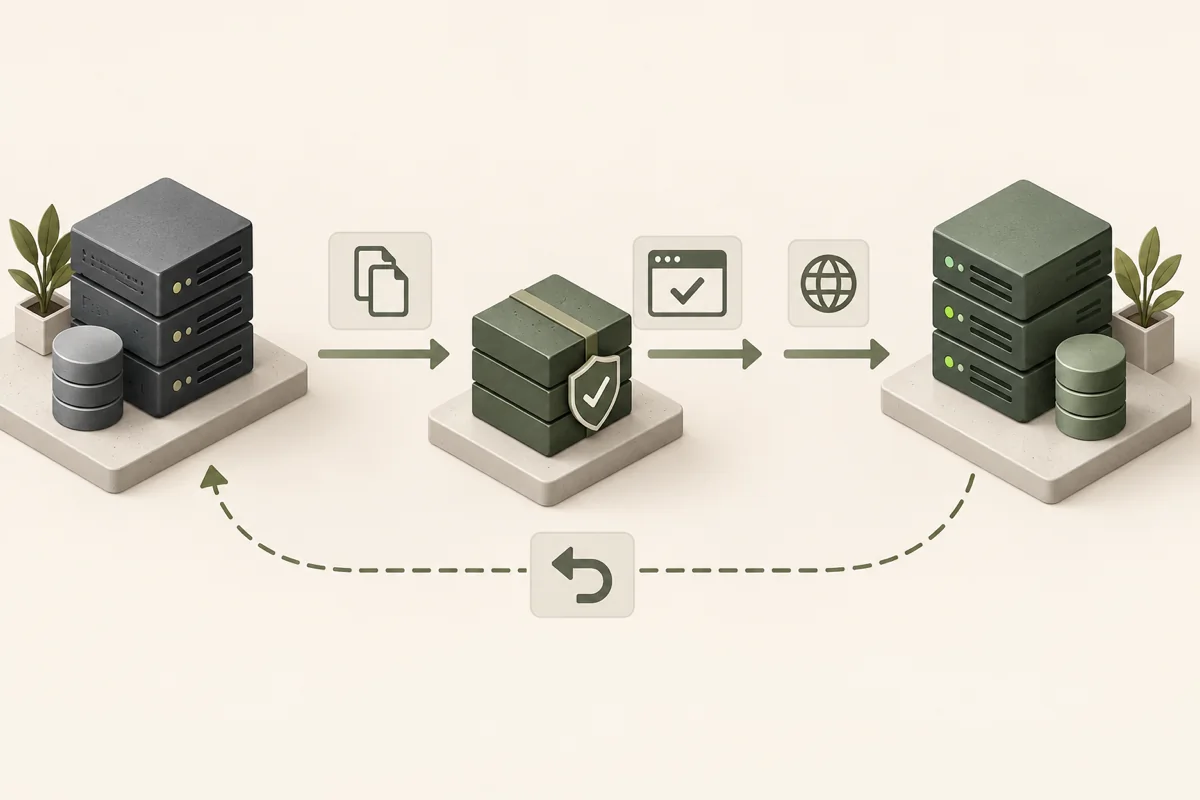
The migration sequence
Use the same order even when the tools change. Skipping “test” to save an hour is how DNS nights get long.
- Audit
- Backup
- Configure
- Copy
- Test
- Switch DNS
- Monitor
Treat each stage as a gate. If backup verification fails, do not start configure work that assumes you can recover. If testing fails, do not publish DNS changes to “save the maintenance window.”
Copy the site without creating two sources of truth
Make an initial copy to the VPS: files, database, and whatever else the inventory requires. The official WordPress migration documentation also treats files and the database as separate parts of a server move. Then watch what still changes on the origin. Blog drafts may be harmless. Orders, bookings, memberships, and form-driven CRM updates are not.
Plan a final database sync, or a temporary freeze of writes, before DNS switches. Two live versions that both accept critical data create a split brain. After cutover, only one system should accept those writes unless you have a deliberate, tested sync strategy—which most shared-to-VPS moves do not.
Keep the copy method boring: provider migration tools, SFTP plus database export, or a maintained migration plugin your team already understands. Prefer a method your team already knows how to reverse. After the first copy, search the new environment for hardcoded old hostnames, wrong file permissions, and missing uploads that only appear on deeper pages.
If the site is large, time a trial copy earlier in the week so cutover night is not the first time you learn how long the transfer takes.
Test before changing DNS
Prove the site on the VPS while public DNS still points at shared hosting. Qualified operators sometimes use a hosts-file override or a temporary preview hostname. Use only methods you already know how to reverse. This is not a place for first-time system experiments on a production domain.
- Homepage and key templates load without fatal errors.
- Admin login works with the expected users.
- Forms submit and store or deliver as designed.
- Transactional email still leaves the server or relay.
- Uploads appear and new media can be added.
- Search, redirects, and scheduled tasks behave.
- API or webhook integrations respond where critical.
- SSL paths, error logs, mobile layout, consent, and analytics look sane.
If a critical check fails, fix it or stop. Do not “fix it after DNS” unless the failure is cosmetic and documented with an owner. Screenshot or note the failures so the post-cutover review is based on evidence, not recollection.
DNS cutover
Open the DNS panel before cutover day and confirm you can still edit records with the account you expect to use. Export or screenshot the existing set. Note TTL values, which control how long resolvers cache each record.
Plan the A, AAAA, and CNAME changes that move the website. Leave MX records alone unless email is intentionally moving too. Preserve email-related TXT records and any verification records the site still needs. Do not copy or delete unfamiliar TXT records without identifying their purpose.
Lowering TTL ahead of time can make the later switch feel faster for some resolvers, but it is not a guarantee. Do it only if you understand the DNS host’s interface and can raise TTL again afterward.
After you publish the new web records, resolvers update on their own schedules. Some visitors may still hit the old server for a while. That is why the old host should stay up, and why write freezes or final syncs matter. Watch resolution from more than one network when you can, and treat residual old-server hits as expected during the window—not as automatic proof the cutover failed.
SSL and HTTPS
Load the live hostname over HTTPS on the new host and look for certificate warnings before you call the move done. If your host does not manage certificates for you, Let’s Encrypt’s getting-started guidance explains the ACME-client path. Then check HTTPS redirects, mixed content, canonical URLs, WordPress site URL settings, and redirect chains. A site that “basically works” on HTTP while producing certificate warnings will generate support noise immediately.
If you use a temporary preview hostname for testing, remember that the production certificate story may differ. Re-check SSL after the real hostname points at the VPS. Clear or bypass CDN caches if a CDN sits in front of the origin, or you may keep serving old content from the edge while believing the origin is fine.
Email is a separate migration risk
Website traffic and email often live on different systems. Changing nameservers or editing the wrong DNS records can disturb MX, SPF, DKIM, and DMARC even when you only meant to move the website.
Copy the web records you need. Preserve email records unless the mail migration is an explicit part of the project. After cutover, send a test through each critical form and transactional path. A homepage that loads while password resets bounce is still a failed migration for users.
If transactional mail uses an external relay, confirm API keys and sending domains still authorize the new server’s path. Moving the web origin does not automatically update every mail provider’s allowlist.
Decide rollback conditions before cutover
Agree on stop rules while everyone is calm. Examples that usually justify rolling back or pausing:
- Database writes diverge between old and new during the window.
- Checkout or form submissions do not save.
- SSL fails for the live hostname.
- A critical integration fails and has no workaround.
- The new server is unstable under ordinary traffic.
- Nobody with fix access is available.
Name the person who can trigger rollback without a committee call. Write the first rollback action in plain language: which DNS record changes, which backup is restored, and who confirms the old host is receiving traffic again.
Monitor after migration
Hit the homepage and one critical form URL right after DNS moves, then check application errors and PHP or database logs before you walk away. Re-test email, confirm cron and background jobs still fire, and glance at analytics and consent tooling so you know measurement did not silently die. Watch CPU, RAM, and disk as ordinary traffic arrives. For broader coverage, WordPress’s monitoring guidance distinguishes uptime checks, performance monitoring, and server or application logs.
Confirm backups are running on the new side. Review security alerts if you use them. Where practical, check DNS resolution from more than one network. How long you monitor depends on traffic patterns and how risky the change was—not on a universal timer copied from a vendor blog.
Keep the old environment available until the agreed checks pass and rollback is no longer required.
Final VPS migration checklist
- Inventory complete, including unknowns that still need owners.
- Backup verified with a successful read or restore test.
- Target VPS configured for the application runtime.
- Site tested on the new host before DNS changes.
- Current DNS records saved; web vs email records distinguished.
- Rollback owner and triggers identified.
- Data freeze or final sync completed if writes continued during copy.
- SSL and email paths checked on the live hostname.
- Monitoring active; old hosting retained temporarily.
Before you touch DNS, write three lines in the project note: who owns cutover, which condition triggers rollback, and where the last verified backup is stored. Then run the checklist once more and proceed—or stop.