
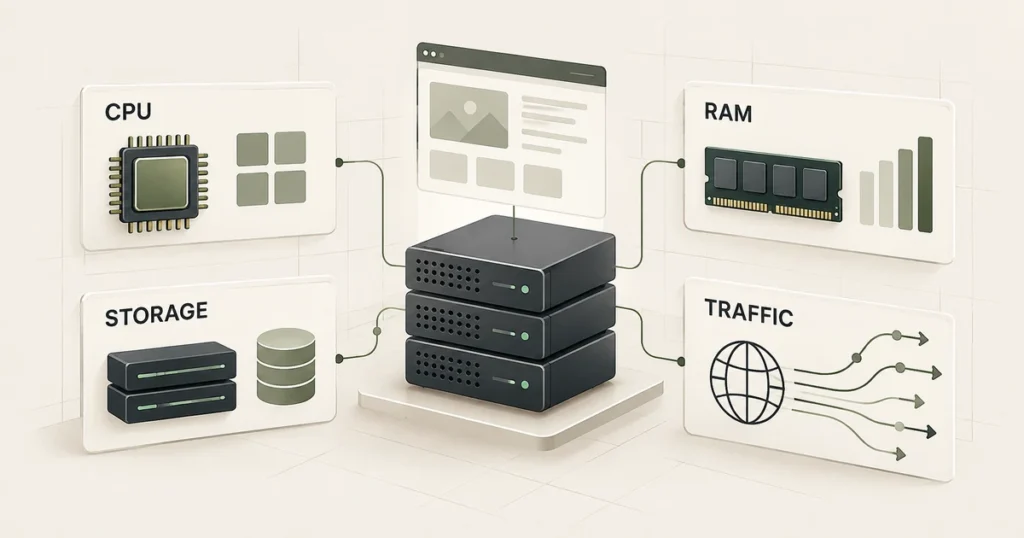
A 2 GB VPS can be perfectly comfortable for one WordPress site and frustratingly small for another. The difference is rarely the monthly visitor count on its own.
A mostly cached company site may serve a surprising amount of traffic without asking PHP or the database to do much work. A WooCommerce store with search, carts, account pages, scheduled jobs and frequent admin activity can put much more pressure on the same server with far fewer visitors.
That is why VPS sizing works better as a workload question:
What must the server calculate in real time, how many of those requests can arrive together, and what else is running in the background?
Quick take:
A reasonable starting point when page caching is effective.
Useful when several WordPress installs share the server and need additional headroom.
A planning starting point for WooCommerce, membership sites and other dynamic workloads.
Planning starting points, not WordPress requirements.
Measure the actual workload before paying for a much larger server.
Start with workload, not monthly traffic
“100,000 visits per month” sounds useful, but it hides the part that matters to the server.
Those visits could arrive evenly across thirty days. They could also arrive in a short campaign window.
More importantly, two page views are not necessarily equal.
A cached article may be returned without WordPress rebuilding the page. A cart update, product search, checkout request, API call or uncached admin screen has to do considerably more work.
Before choosing a VPS, write down four things:
That gives you a better starting point than monthly sessions alone.
CPU: think about concurrent PHP work
CPU becomes important when WordPress actually has to execute PHP.
Common examples include:
- uncached page generation;
- WordPress admin activity;
- WooCommerce cart and checkout requests;
- search and filtering;
- REST API requests;
- cron jobs;
- imports and exports;
- image processing;
- backup jobs;
- poorly optimized plugins or database queries.
A brochure site behind a good page cache may spend much of the day doing very little PHP work. A store can keep the CPU busy even with modest traffic because more of its important pages stay dynamic.
This is also why adding CPU cannot fix every slow WordPress site. If one plugin produces an inefficient database query, giving the server more cores may only give the inefficient workload more room to run.
Treat additional vCPU as capacity for concurrent work, not as a replacement for optimization.
RAM: leave room for more than WordPress
Server RAM is shared by the whole stack.
Depending on the setup, memory may be used by:
- the operating system;
- Nginx or Apache;
- PHP-FPM workers;
- MySQL or MariaDB;
- Redis or another object cache;
- monitoring agents;
- control panels;
- background jobs.
This is different from the WordPress memory limit.
For example, WooCommerce currently recommends a WordPress memory limit of at least 256 MB. That setting controls how much memory WordPress/PHP may use for an individual process or operation. It does not mean that a 256 MB or even 1 GB VPS is appropriate for a WooCommerce server.
Do not size a VPS by looking at WP_MEMORY_LIMIT and multiplying it by an arbitrary number.
Look at the entire server: PHP workers, database memory, object caching and the operating system all compete for RAM.
When available memory disappears, the server may begin using swap or killing processes. That tends to show up as inconsistent response times, failed background jobs or a backend that feels much slower under load.
A practical starting-point matrix
Use these as planning baselines, not guarantees.
Simple company site / small blog
2 vCPU / 2 GB RAM
- Most public pages are cached.
- Traffic concurrency is low.
- There are few heavy plugins. The server hosts one modest site.
Growing content site / several small WordPress sites
2–4 vCPU / 4 GB RAM
- The admin is used regularly.
- Several sites share the VPS.
- Background jobs run throughout the day.
- There is room for database and object caching.
WooCommerce / dynamic WordPress application
4 vCPU / 8 GB RAM
- Carts, checkout and account areas create regular uncached traffic.
- Imports, feeds or Action Scheduler jobs run frequently.
- Product search or filtering is important. The store must tolerate short traffic peaks.
Heavy stores / multisite / API / sustained concurrency
Measure first
At this stage, a generic sizing table becomes less useful. You may need 8 or more vCPU and substantially more memory, but the correct answer should come from monitoring and load testing rather than a traffic-number formula.
Storage: capacity is only half the decision
It is easy to size storage by adding together WordPress files, uploads and the database.
That is only the minimum.
The same disk may also need room for:
- logs;
- temporary files;
- local backups;
- staging copies;
- database temporary work;
- plugin caches;
- imports;
- generated image sizes.
Leave operational headroom rather than choosing a disk that is almost full on day one.
Storage performance matters as well. WordPress performs many small reads and writes, particularly around the database and dynamic workloads. SSD or NVMe storage is therefore preferable to slow spinning storage for a VPS running WordPress.
Do not interpret faster storage as permission to ignore database problems, though. A bad query is still a bad query on a faster disk.
Traffic and bandwidth are a separate constraint
A server can have enough CPU and RAM while still having an unsuitable network allowance.
Think about transfer volume separately from compute.
A media-heavy site can send large amounts of data while doing relatively little PHP work. Conversely, a heavily cached site may handle substantial page traffic without placing equivalent pressure on the CPU.
A CDN can reduce how much static content the origin server needs to deliver, but it does not remove the resource cost of dynamic WordPress requests.
When comparing VPS plans, check:
- included bandwidth or transfer;
- port/network speed;
- overage policy;
- datacenter location;
- whether your CDN will serve most static assets.
Cacheability changes the size you need
One of the most useful questions before upgrading a server is:
Which requests actually need WordPress to build a response?
- Visitor request
- CDN / page cache where possible
- PHP / WordPress for dynamic requests
- Database / object cache as required
Full-page caching can take a large portion of anonymous content traffic away from PHP and the database.
Object caching can help with repeated database work, although it is not a substitute for fixing inefficient queries.
WooCommerce makes the distinction especially visible. Product and category pages may often benefit from caching, while carts, checkout, accounts and many personalized requests stay dynamic.
Size the server for the expensive part of the workload, not for the easiest cached page.
Do not forget the work nobody sees
A site can feel fast to visitors while background jobs quietly consume most of its spare capacity.
Watch for:
- scheduled backups;
- security scans;
- WooCommerce Action Scheduler queues;
- feed generation;
- inventory synchronization;
- imports;
- image optimization;
- staging operations;
- automated crawls.
If these jobs regularly overlap with traffic peaks, the VPS needs enough headroom to handle both.
Changing the schedule can sometimes be more effective than immediately moving to a larger plan.
How to tell whether the VPS is actually too small
Do not upgrade because the CPU graph briefly reached 100%.
Short spikes happen.
Look for a pattern instead.
Useful signals include:
Measure during the periods when the site is actually busy.
If the server has plenty of free resources while WordPress remains slow, investigate the application before buying more capacity.
Where an is*hosting VPS fits
Once the workload is understood, the hosting decision becomes simpler.
is*hosting offers VPS plans across multiple CPU, RAM and storage levels, so the practical approach is to choose a configuration with enough headroom for the current workload and retain a path to scale when monitoring shows that the site needs it.
For a WordPress site moving away from shared hosting, the point is not to buy the largest VPS available. It is to gain predictable resources and enough control to tune the stack around the application.
Before choosing a plan
Use this short check before ordering. The VPS migration checklist is useful when you are ready to plan the move:
- What percentage of the public site can be cached?
- Which requests must remain dynamic?
- What does peak concurrency look like?
- Does WooCommerce, membership logic or an API run on the site?
- How much RAM does the whole stack consume now?
- Are backups, imports or scans competing with visitor traffic?
- How much storage will you need after logs, backups and staging are included?
- Is the server location close to the main audience?
- Can the VPS be scaled without a complicated migration?
If several answers are still guesses, start with measurement rather than a large server.