
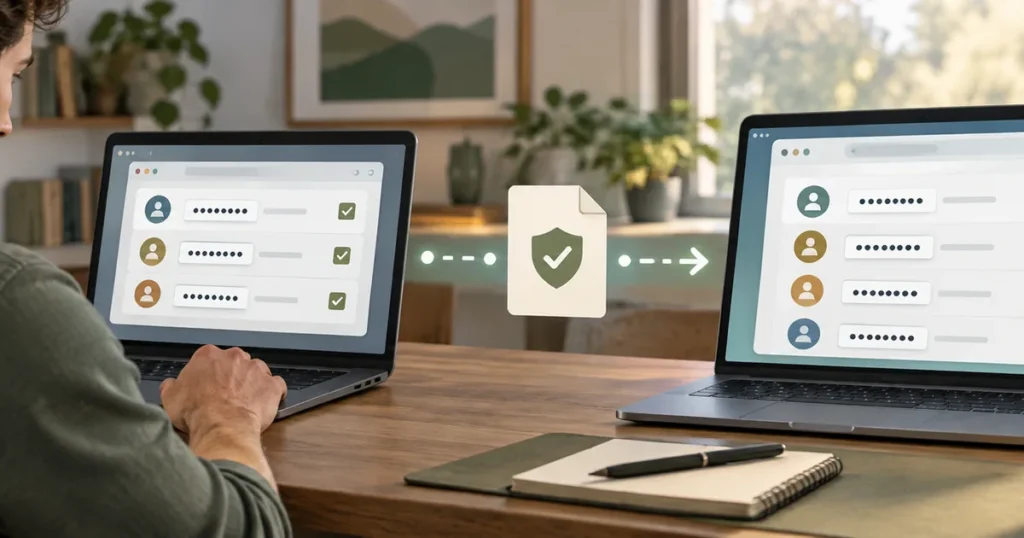
A browser change looks harmless until the new browser opens with an empty password list.
The old browser still signs you into email, hosting, banking, subscriptions, and accounts you have not typed a password for in years. Some logins belong to a synced account. Others exist only on one computer. A few use passkeys or social sign-in instead of a conventional password.
Moving that collection is less like copying bookmarks and more like handling a temporary set of keys. The transfer itself may take minutes. Checking what arrived takes longer.
Quick answer: Export passwords only on a trusted computer. Treat the export file as exposed data, because browser exports commonly use readable CSV files. Import it into the destination, verify a sample of important accounts, resolve duplicates, and remove the transfer file after the migration is confirmed.
Do not erase the old browser’s passwords at the start. Keep the old setup available until the new one works.
Decide what you are moving
Open the password manager in the old browser before exporting anything. Look at what is actually stored.
A typical list contains more than straightforward website passwords:
- several usernames for the same domain;
- old accounts that no longer work;
- duplicate entries;
- passwords saved to a browser account;
- passwords stored only on the device;
- passkeys;
- notes or recovery details;
- logins created through Google, Apple, Microsoft, or another identity provider.
A CSV migration usually concerns usernames and passwords. It may not reproduce passkeys, notes, one-time codes, sharing permissions, or every browser-specific field. Those items need separate attention.
Count the records if the browser shows a total. You will use that number later as a rough check, though matching totals do not prove that every entry is usable.
Check where the current passwords live
A browser can store credentials locally, inside a signed-in browser account, or through a mixture of both.
Chrome, for example, can save passwords to a Google Account when the user is signed in. It can also keep passwords on the device. Browser profiles complicate the picture further because a personal profile and a work profile may have different collections.
Before exporting, confirm:
- Which browser profile is open.
- Which account is signed in.
- Whether passwords appear on another trusted device.
- Whether work policies restrict export or import.
- Whether the destination supports the source format.
Do not assume that the browser window you use most contains the complete list.
Prepare the destination first
Update the destination browser before importing. Open its password settings and confirm that importing is available.
Decide where new passwords should be saved after the move. If both the old and new managers continue offering to save credentials, duplicates will start appearing almost immediately. Choose one default before normal browsing resumes.
This is also the point to decide whether the move is only between browsers or part of a larger change. If passwords are spread across browsers, phones, and other people, compare simple browser storage with a dedicated password manager before importing the same collection into another browser ecosystem.
Changing the destination halfway through creates another export file and another cleanup job.
Export on a trusted computer
Chrome, Firefox, and Edge can export saved credentials from their desktop password-management settings. The exact menu labels change, so use the current support page for the installed browser version.
The important part is the file.
Microsoft and Mozilla explicitly warn that exported CSV passwords are readable by anyone who can access the file. Google also tells users to delete the CSV after an import. The operating system may ask for a password, PIN, fingerprint, or other authentication before export, but that confirmation does not encrypt the resulting file.
Use a private, updated computer. Save the file to a local folder you control.
Avoid:
- shared desktops;
- public computers;
- email attachments;
- messaging apps;
- cloud-synced folders;
- general Downloads folders that are backed up automatically;
- USB drives of unknown history.
If the file lands in Downloads by default, move it immediately to a temporary local folder. Do not open it in an online spreadsheet.
Import without deleting the source
Import the file into the destination browser or password manager. If the destination reports rejected rows, save the error details without copying passwords into an ordinary note.
Large collections may include malformed URLs, blank usernames, duplicates, or entries that the importer cannot map. A failed row is not always a lost account. The original record should still exist in the source browser.
Leave the source untouched.
That rule feels overly cautious until the destination imports 460 of 487 records and does not explain the missing 27 clearly.
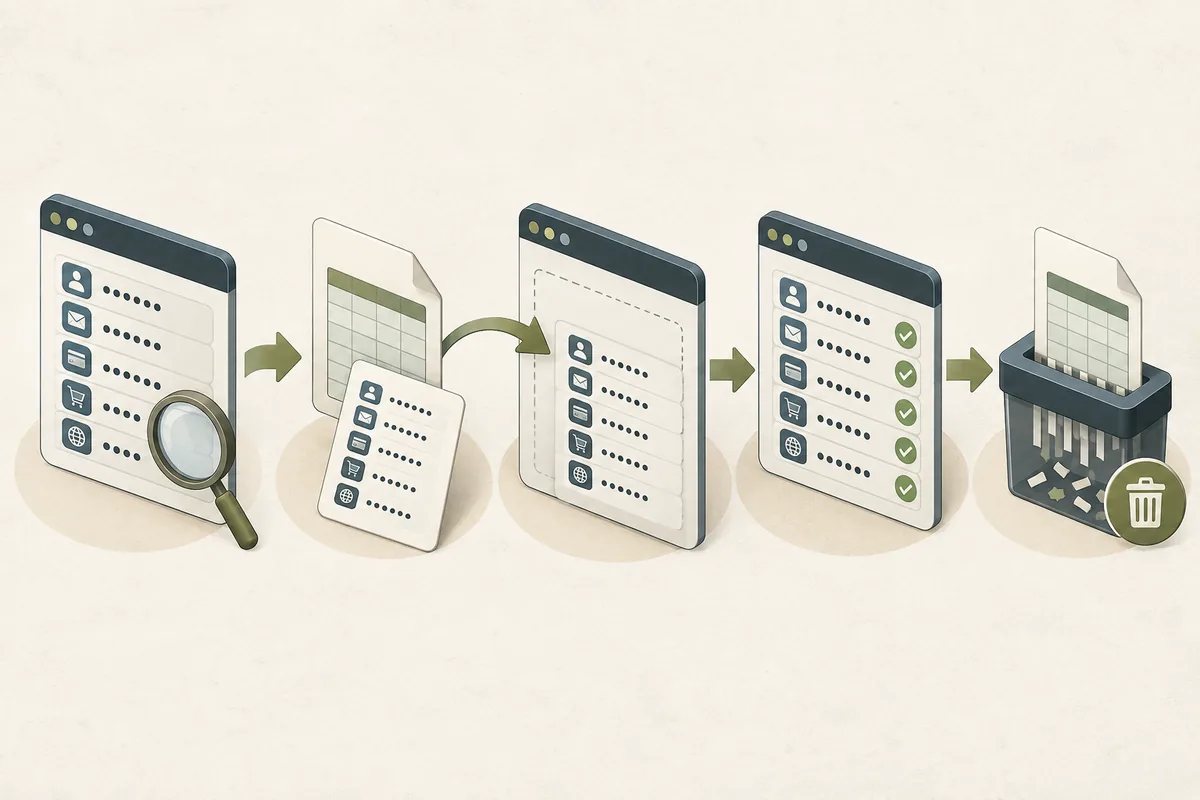
Verify accounts that matter
Do not test every login in alphabetical order. Start with accounts that can reset or control other accounts:
- primary email;
- recovery email;
- mobile carrier;
- Apple, Google, or Microsoft identity;
- banking and payment services;
- domain registrar;
- hosting and cloud services;
- social accounts used for sign-in;
- work accounts, if migration is permitted.
Open the real site from a trusted bookmark or typed address. Confirm that autofill selects the correct username. Sign in normally. Do not change a working password merely to prove that migration occurred.
Then test a handful of ordinary accounts. Include one domain with multiple usernames and one account that has not been used recently.
A successful import message is evidence that the file was processed. It is not evidence that each credential still works.
Handle duplicates without rushing
Duplicates appear for predictable reasons. Two browsers may have saved the same account under slightly different URLs. An old username may remain beside a new one. One record may have the current password while another has an earlier version.
Use the last modified date if the manager provides it, but do not trust the date alone. Verify the account before deleting either copy.
Keep labels useful. Personal Gmail, Client billing, or Old admin account is easier to understand six months later than three identical entries named after the same domain.
Some duplicates should remain. Two people can have separate accounts on the same service. A personal login and a work login are not redundant just because their URLs match.
Passkeys need a separate check
Passkeys do not behave exactly like exported passwords. Availability and synchronization depend on the platform, browser, operating system, and credential provider.
List important accounts that use passkeys before removing the old browser or device. Confirm that another accepted sign-in method exists. That may be a passkey on another device, a password, a hardware security key, recovery codes, or an account recovery process.
Do not delete the original passkey until the replacement sign-in path has been tested.
The same caution applies to browser extensions that store one-time codes. A password import does not guarantee that those codes moved with it.
Remove the transfer file
Once the imported collection has been checked, find every copy of the exported CSV.
Look in:
- the temporary folder;
- Downloads;
- Trash or Recycle Bin;
- recent cloud-sync activity;
- backup software;
- removable storage;
- files created by a spreadsheet application.
Delete the file and empty the relevant trash location. Microsoft recommends permanently deleting the Edge export after use. Mozilla and Google also warn that the exported file remains readable.
Deletion from a synced folder may not immediately remove an older cloud version or backup. If the file entered one of those systems, review its retention and version-history controls.
Do not keep the CSV as a convenient backup. A readable list of current passwords is a poor recovery plan.
Keep the old browser for a short overlap
The old browser can remain installed while the new setup settles. Turn off its offer to save new passwords if the destination is now the primary manager.
Use the overlap to catch missing accounts, not to maintain two live collections indefinitely. Once both browsers keep accepting new credentials, nobody knows which one holds the current password.
Remove the old collection only when:
- important accounts work in the destination;
- rejected imports have been reviewed;
- passkeys and recovery methods are accounted for;
- the CSV is gone;
- the destination is syncing as expected;
- another trusted device can access the accounts you expect.
There is no prize for deleting the source on the same afternoon.
A compact migration checklist
Before export:
- Confirm the correct browser profile.
- Check whether passwords are local or account-synced.
- Update the destination.
- Choose the new default password manager.
- Review employer restrictions.
During transfer:
- Export on a trusted desktop computer.
- Keep the CSV in a temporary local folder.
- Import without removing the source.
- Record rejected entries without exposing their passwords.
Before cleanup:
- Test primary email and recovery accounts.
- Test financial, hosting, domain, and identity-provider accounts.
- Review duplicates.
- Check passkeys and one-time-code tools separately.
- Delete every copy of the CSV.
- Keep the old browser available until the new setup proves reliable.
The last account worth checking is the one you would need after losing the laptop. If its recovery path depends on the laptop itself, leave that problem visible until it has a real answer.
Sources and verification
- Google Chrome Help: Manage passwords in Chrome
- Google Chrome Help: Import or export passwords
- Mozilla Support: Export login data from Firefox
- Microsoft Support: Export passwords in Microsoft Edge
- Microsoft Support: Import favorites and passwords in Microsoft Edge
Browser menus and migration features were checked against official documentation on September 16, 2026. Menu labels and supported data types can change with browser updates.